How it works
Upload the menu you already have, print a QR code for each table, and guests can scan, ask questions and order.
Setup happens in a web browser. Reading a menu page takes about 10 to 30 seconds.

- 01
Upload your menu
Add photos or a PDF of the menu you already have. UVStack reads the dishes, prices, descriptions and any allergen notes printed on it. Anything it isn’t sure about is flagged and kept off the guest menu until you approve it.
- 02
Review it and print table QR codes
Check what was read and correct anything that’s off. Then add your tables and print a QR code for each one. The code opens your menu for that table.
Your restaurant
Table
7
Scan to see the menu, ask questions and order.
- 03
Guests scan and order
A guest scans the code at their table, looks through the menu, asks the assistant anything they want to know, and sends the order. It shows up on the staff screen with the table number.
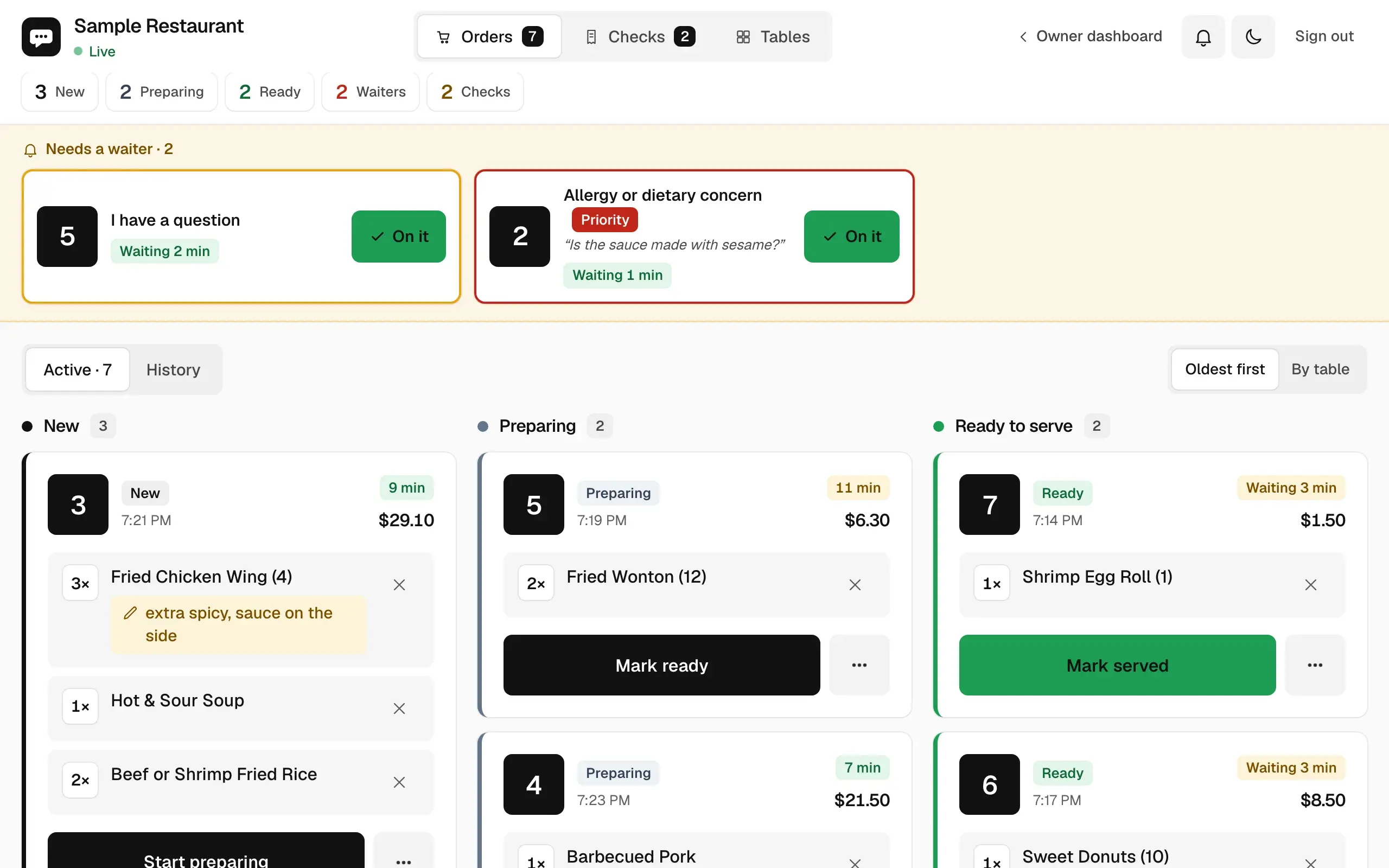
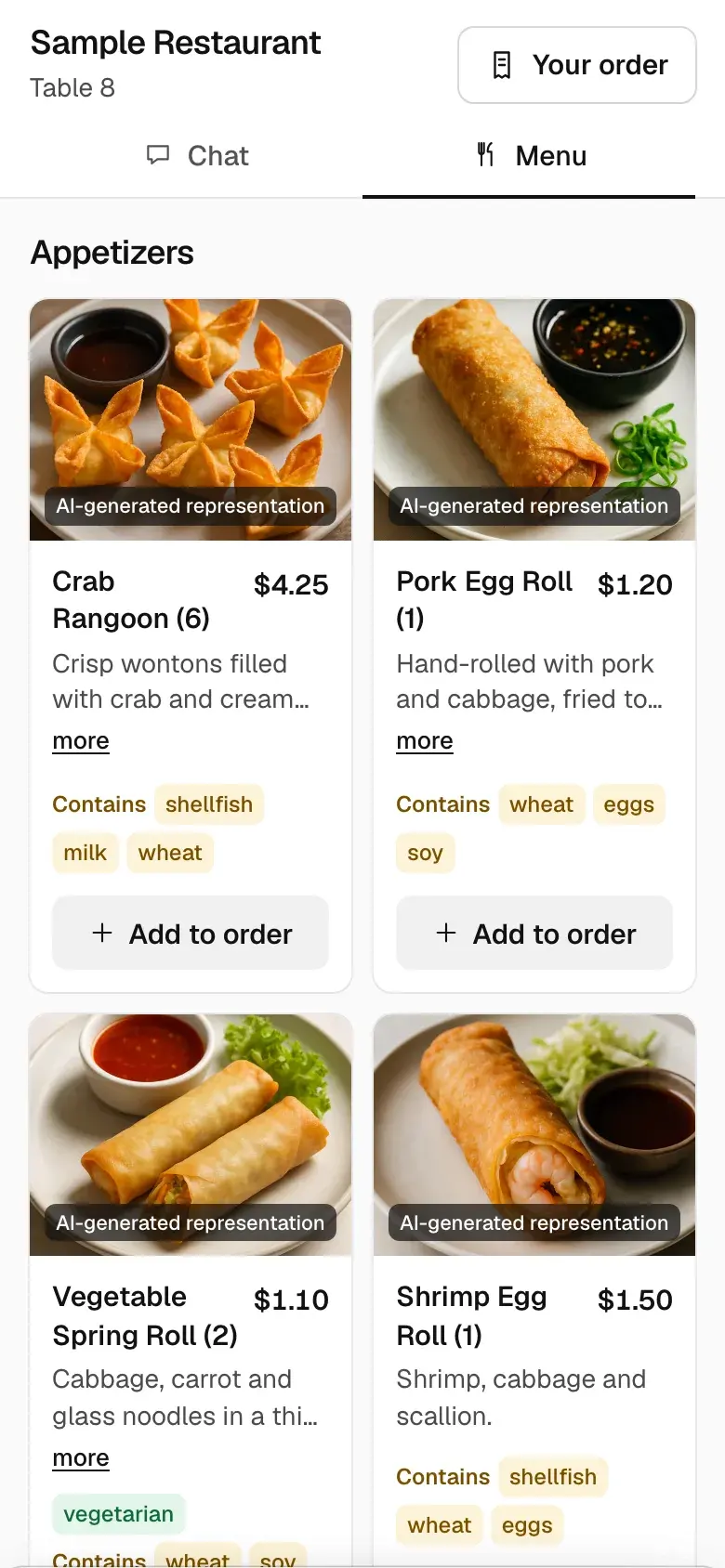
Screens show a sample restaurant with sample data.
What you need
A phone or computer
Setup happens in a web browser. You don’t need a developer or any special equipment.
Your menu, as photos or a PDF
Whatever you already have. UVStack reads the dishes, prices and descriptions for you.
A way to print QR codes
One for each table. The code opens your menu for that table.
Dish pictures are made in the background, so you can go live while they fill in. Anything UVStack isn’t sure about is kept off the guest menu until you approve it.
Set up UVStack for your restaurant
Creating an account takes about a minute. New accounts are locked until you enter an access code, so email or text us and we’ll send you one. If you’d like help with your first menu, just ask.