A QR code menu that answers questions and takes orders.
Guests scan a QR code at their table, browse your menu, ask an AI assistant about any dish, and send their order to your staff’s screen. You manage the menu and see what guests ask from any phone or computer.
Try one table
You’re the guest at table 7. Scan the code, ask a question and send an order. Then switch hats: you’re the staff, and then the owner. Everything below is a working sample.
- 1Scan the code
- 2Ask the AI waiter
- 3Send an order
- 4Move it along
- 5Read the summary
Step 1 of 5. Press “Scan the code” on the phone.
The guest’s phone
Point your camera at the code on your table
Table 7. Scan to see the menu and order.
On a real phone, the camera does this for you.
The staff screen
Sample Restaurant
Live
- 1New
- 1Preparing
- 1Ready
- 1Waiters
- 0Checks
Needs a waiter · 1
- 4
I need something
Waiting 2 min
New1
- 2
1 min
$19.50
- 2× Pork Dumplings (6)
- 1× Jasmine Iced Tea
Preparing1
- 3
7 min
$32.50
- 2× Dan Dan Noodlesextra spicy
- 1× Crispy Spring Rolls (2)
Ready to serve1
- 5
12 min
$23.00
- 1× Short Rib Rice Bowl
- 1× Lemon Soda
Tables 2, 3, 4 and 5 are made up. Yours is table 7.
The owner’s dashboard
Today so far
A sample day, already under way
Orders
47
·
Sales
$1,284.50
·
Average order
$27.33
·
What guests asked about
Asked for, not on the menu
- ramen ×2
- burger ×1
Try asking the assistant for something the menu doesn’t have.
A summary, in plain words
Analytics opens with a short summary like this one.
Sample numbers. Whatever you did on the phone is added to them. See the owner pages
The menu, the assistant’s replies and the numbers in this demo are samples written ahead of time. A real restaurant’s assistant answers from that restaurant’s own menu.
At the table, guests read the menu, ask questions and order on their own phones. Behind the scenes, your staff get orders and requests on one screen, and you get a record of what guests asked and ordered.

What happens at a table
Here is one order, start to finish.
- 01
A guest scans the code
Each table has its own QR code. It opens your current menu in the phone’s browser, with no app to download and no account to make.
- 02
They look through the menu and ask
The menu shows photos, prices and allergen labels. The assistant answers questions about any dish from what you’ve entered, by typing or by voice.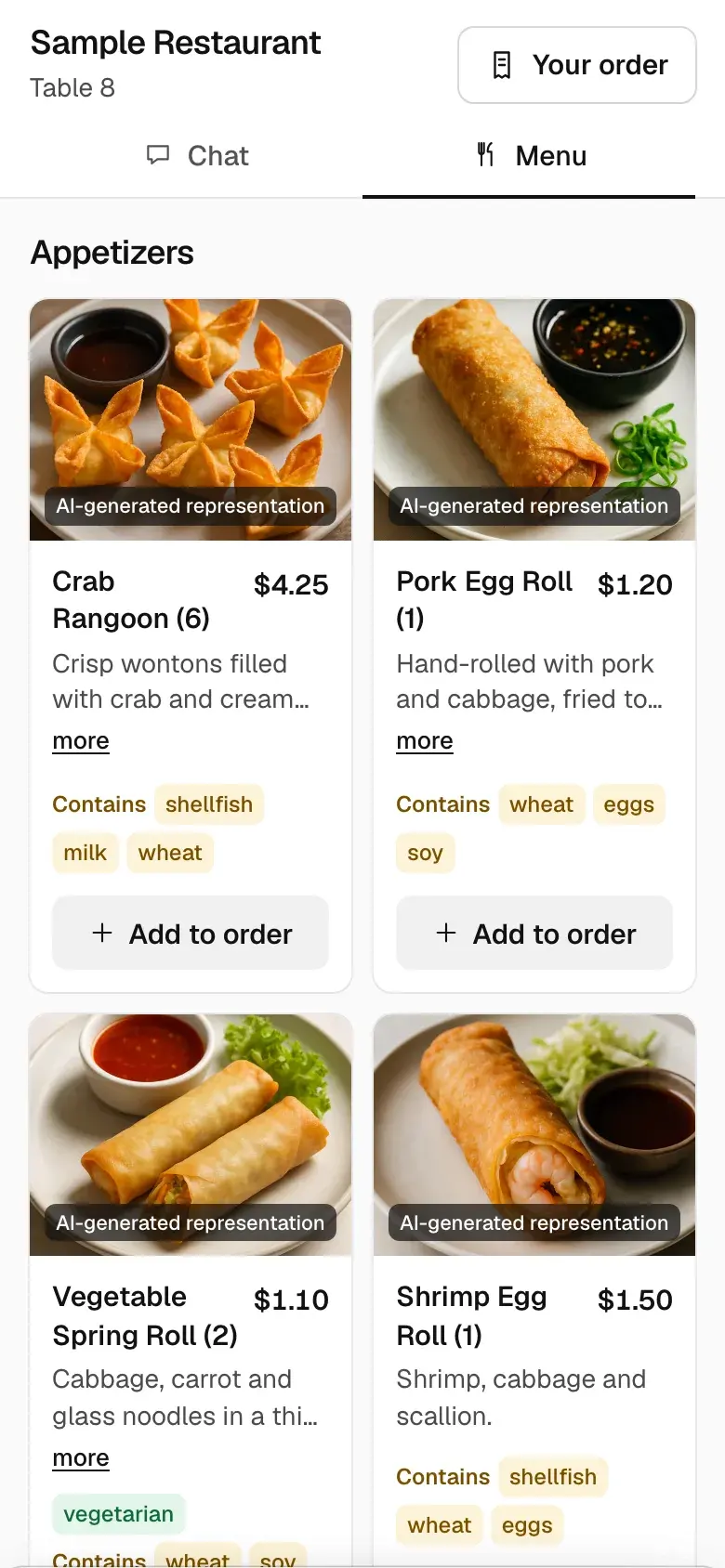
- 03
They send the order
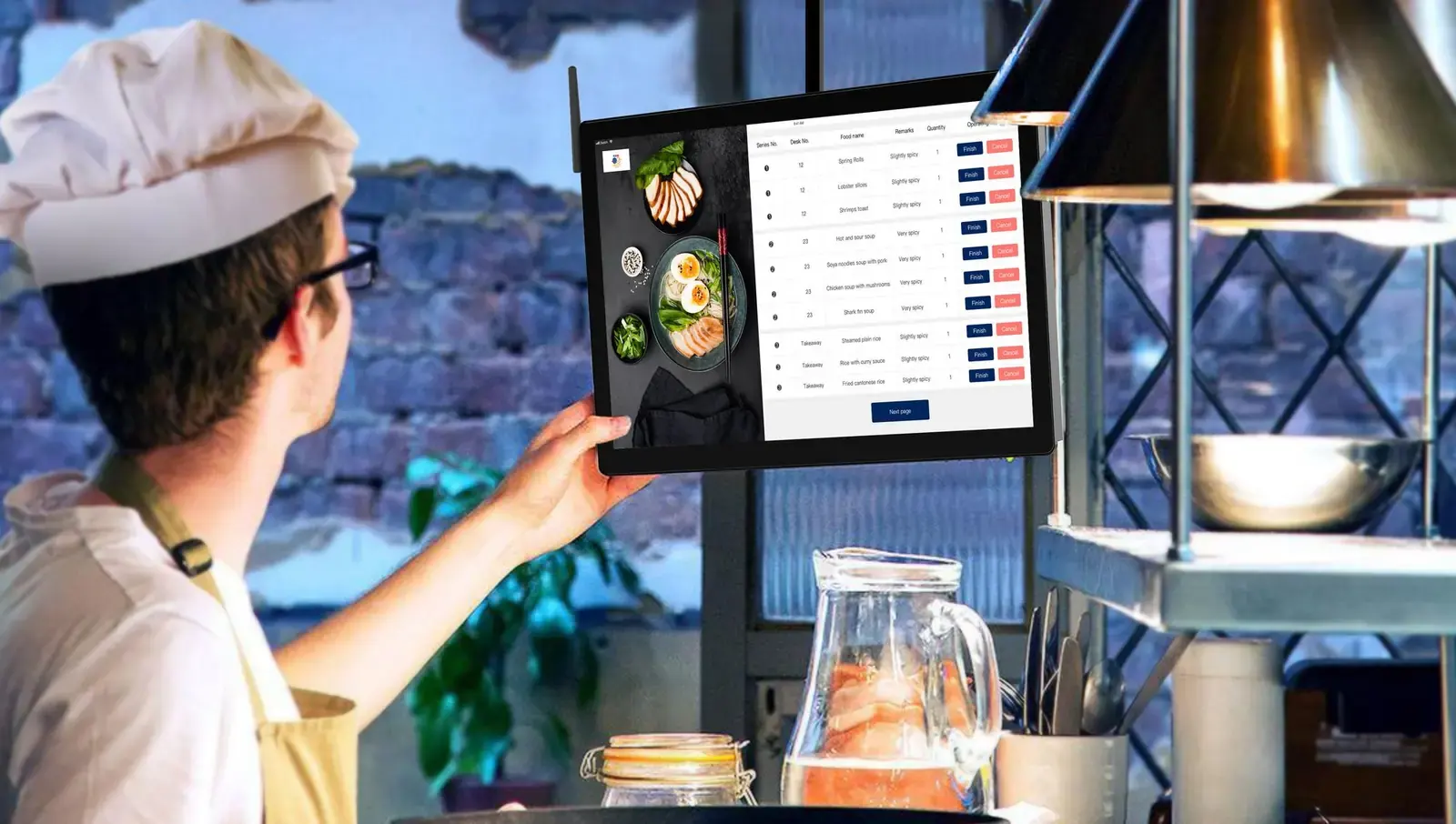
Guests add dishes themselves or by asking the assistant, and can put notes like “no onions” on a dish. The order shows up on your staff’s screen with the table number, and a sound plays.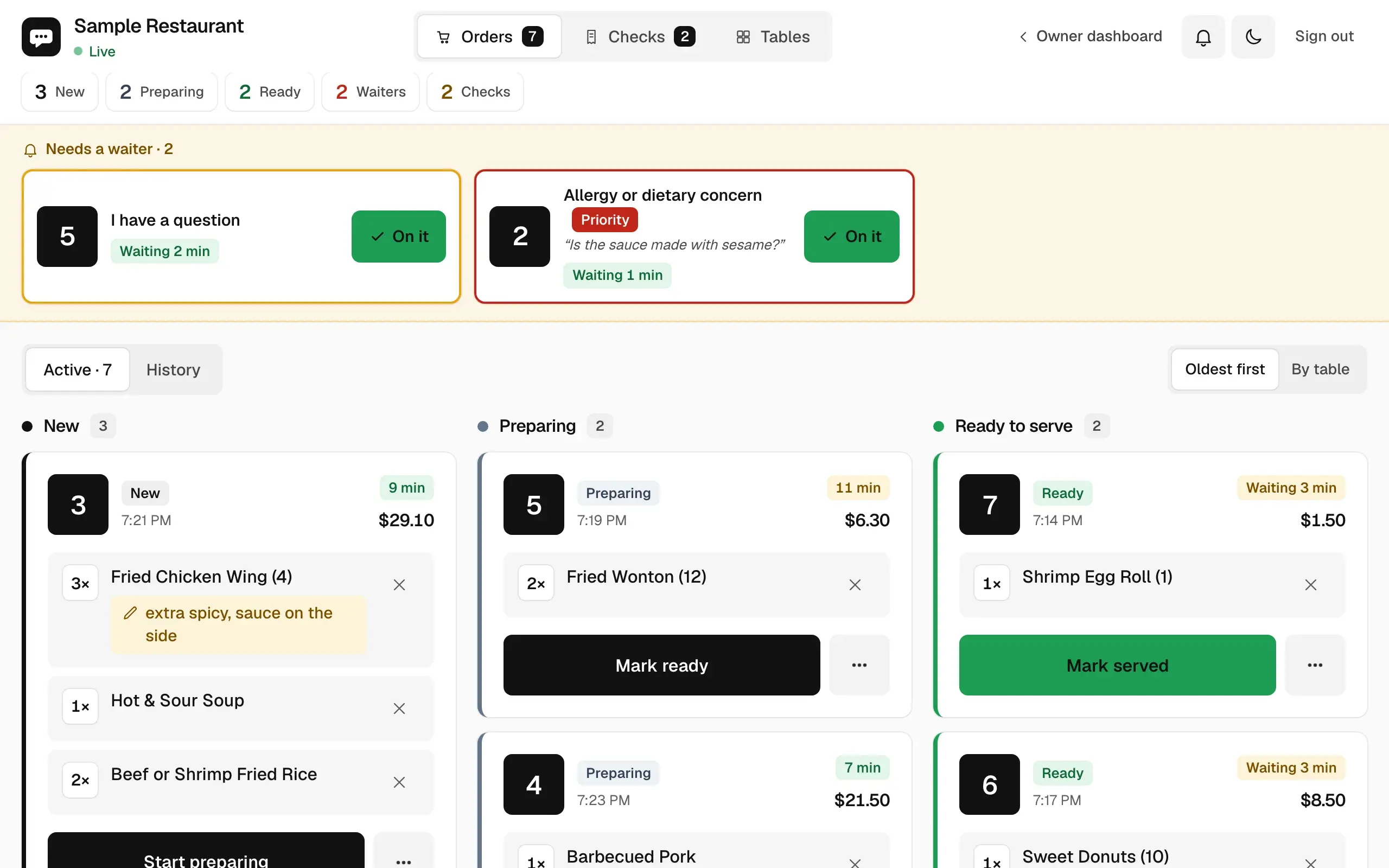
- 04
You see what happened
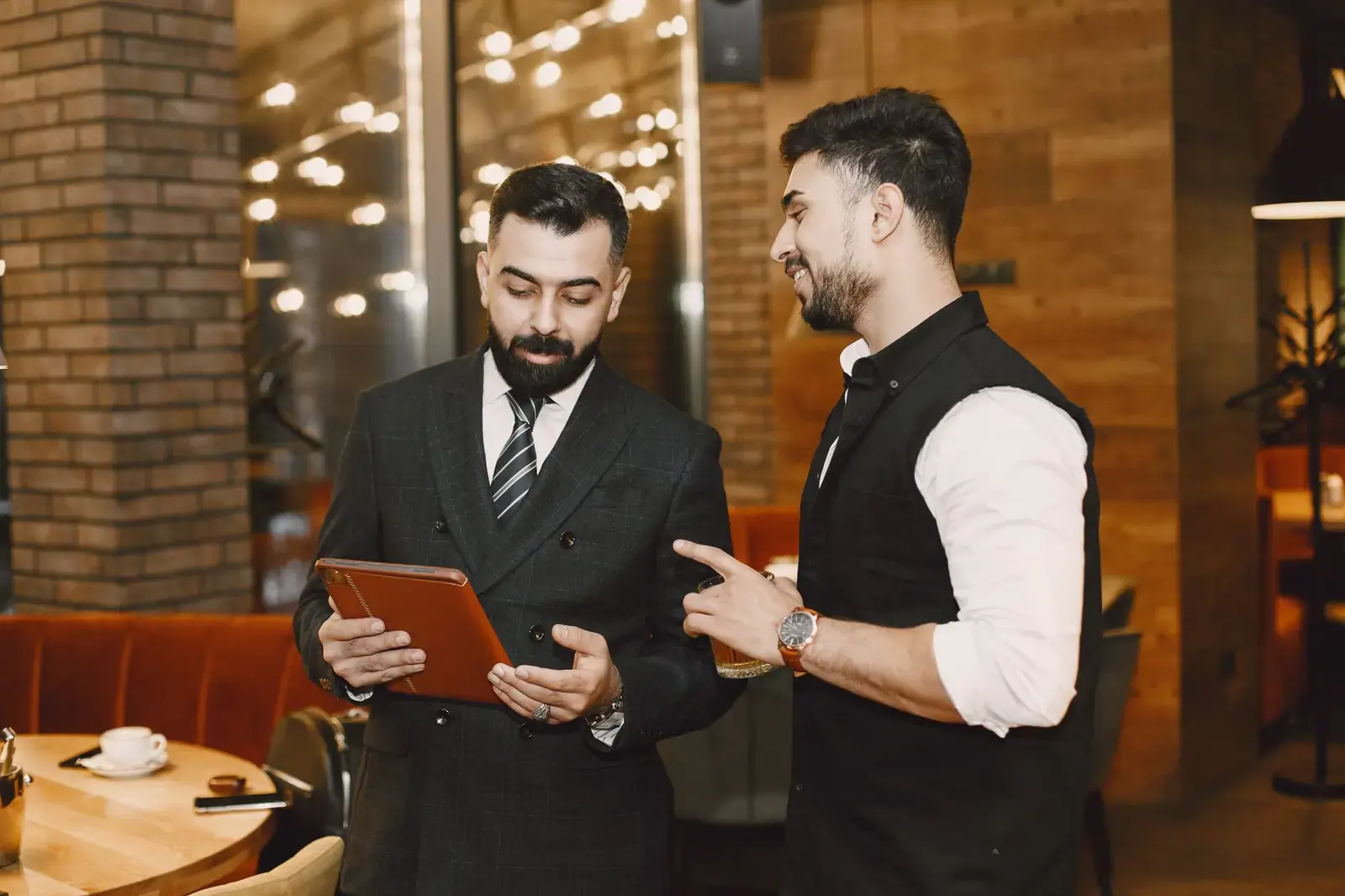
Every conversation and order is saved. Analytics turns them into short summaries of sales, popular dishes, and what guests asked for that isn’t on your menu.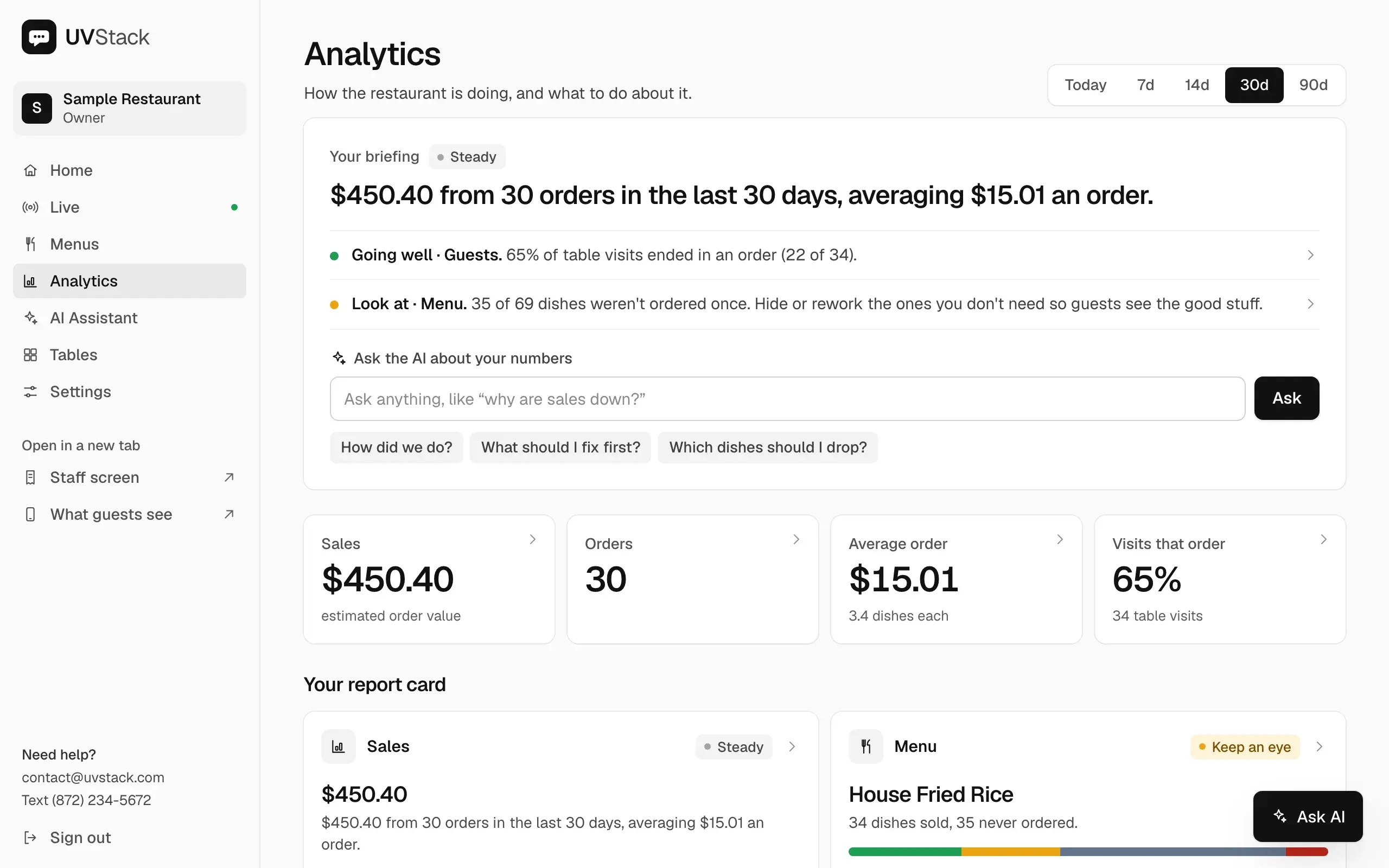
Screens show a sample restaurant with sample data.
Who uses it

Good to know before you start
Payment stays with your staff
Guests can send an order and ask for the check from the table. UVStack doesn’t take payment.
No POS connection
Orders appear on UVStack’s own staff screen, not in a POS or on a kitchen printer. If you use a POS, your staff enter the order there themselves.
Allergies go to a person
The assistant repeats only the allergen information you’ve entered, never says a dish is safe, and sends the guest to a staff member to confirm.
Set up UVStack for your restaurant
Creating an account takes about a minute. New accounts are locked until you enter an access code, so email or text us and we’ll send you one. If you’d like help with your first menu, just ask.