Features
At the table, guests read the menu, ask questions and order on their own phones.
Behind the scenes, your staff get orders and requests on one screen, and you get a record of what guests asked and ordered.

Change a dish, and guests see it
Owners edit names, prices, descriptions, photos and allergens whenever they need to, and mark a dish sold out. The next guest who opens the menu sees the change, so the printed codes on the tables never need replacing. Try it on the sample dish below.
The next guest seesLive
Sample Restaurant
Table 7
Mains
Dan Dan Noodles
$13.50Wheat noodles in a chili-sesame sauce with minced pork and pickled greens.
Change anything on the left. Nothing needs reprinting.
Guests
A guest’s view, from scanning the code to sending the order.
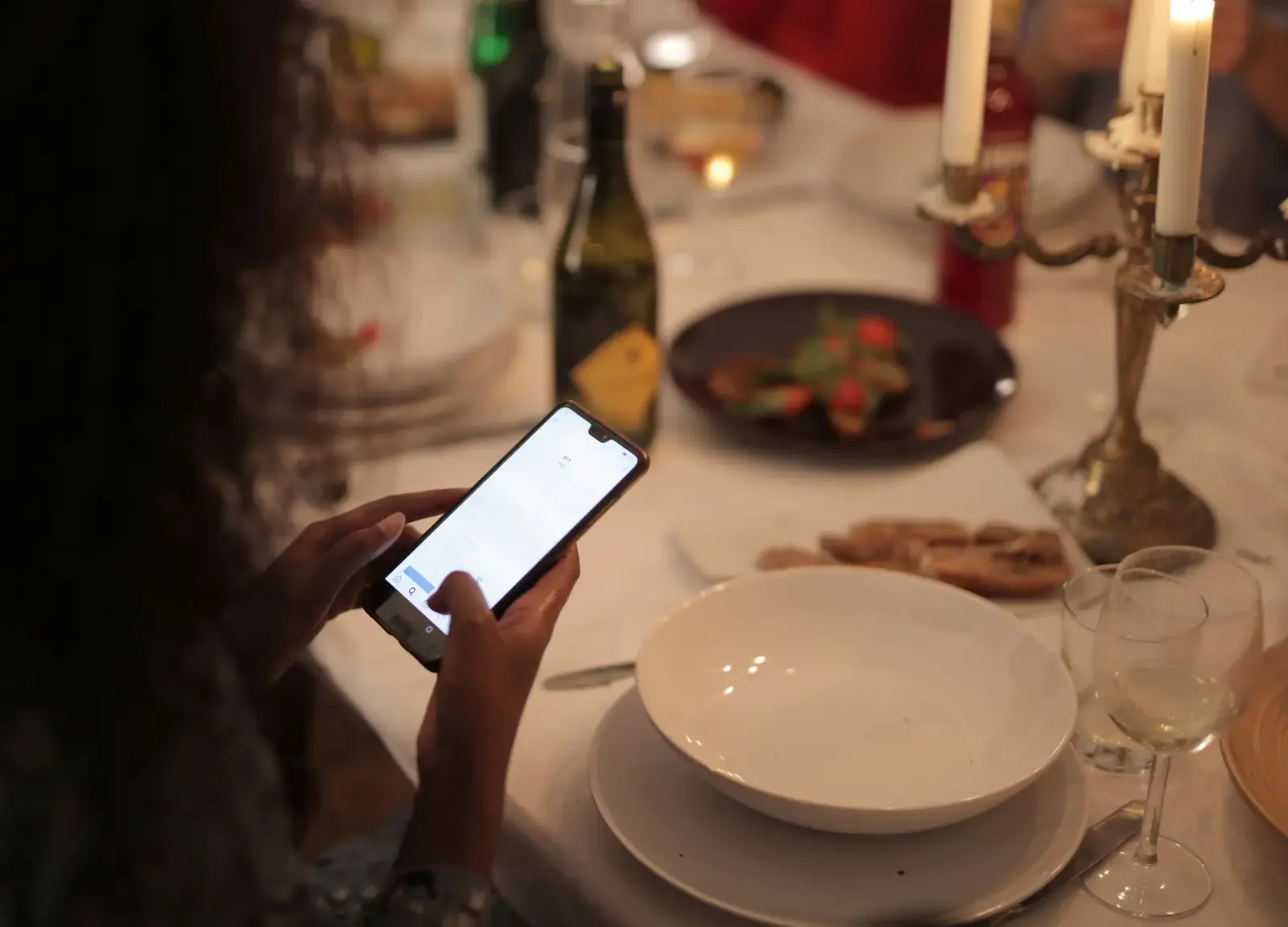
QR code menu
Each table has its own code, which opens your current menu in the phone’s browser with photos, prices and allergen labels. Change a price or mark a dish sold out and the next guest sees it, with nothing to reprint.
Questions about any dish
Guests can type or speak their questions to an AI assistant (it introduces itself as their AI waiter) and have the replies read aloud. It answers from your menu, so routine questions don’t wait for a free server, and the more detail a dish has, the better the answer.
Recommendations
Guests can say what they feel like eating and get suggestions from your actual menu. By default the assistant may also offer a drink, side or dessert that goes with the order. It offers one at a time, stops if the guest says no, and you can switch it off.
Dietary and allergen information
Dishes show the allergens and dietary tags you’ve entered, and the assistant repeats only what’s listed. It never tells a guest a dish is safe and always sends them to a staff member to confirm. The information is only as complete as what you enter.
Ordering from the table
Guests add dishes from the menu or by asking the assistant, put notes like “no onions” on a dish, and send the order to your staff. The total they see is an estimate, and UVStack doesn’t take payment.
Staff
Staff sign in with their own password on any phone, tablet or computer.
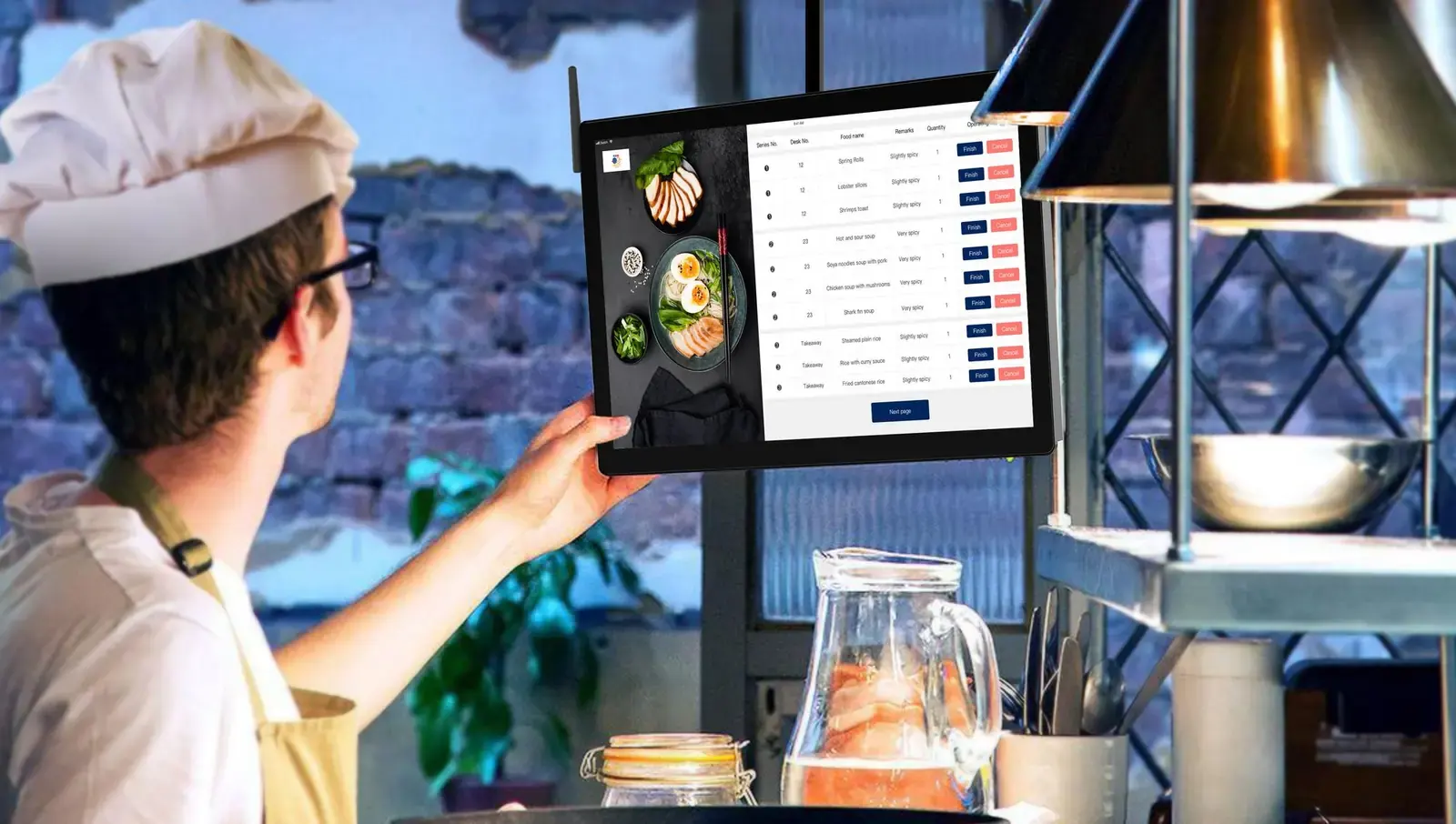
Orders on one screen
New orders appear with the table, the dishes and how long they’ve been waiting, and a sound plays when one arrives. Staff move each order from new to preparing, ready and served, and can cancel a dish and mark it sold out.
Waiter and check requests
Guests can call a waiter and pick a reason, such as an allergy concern, a problem with their food, or needing something at the table. Those stay at the top of the staff screen until someone handles them. Requests for the check appear in their own tab.
Owners
Owners have their own login, separate from staff.
Menu editing
Edit names, prices, descriptions, photos and allergens whenever you need to, and mark dishes sold out. You can also run separate menus for breakfast, lunch and dinner on a schedule, or a special that runs for set dates.
Analytics
Reports cover sales, orders, average order size, busy hours and kitchen times. They also show which dishes sell, which never get ordered, and what guests asked for that isn’t on your menu.
Set up UVStack for your restaurant
Creating an account takes about a minute. New accounts are locked until you enter an access code, so email or text us and we’ll send you one. If you’d like help with your first menu, just ask.